
Introduction
The days of staring blankly at a generic pre-made website template are over. Just a few years ago, building a professional website required either deep coding knowledge, complex design tool expertise, or a massive budget to hire an agency. Today, you can speak your website into existence.
Whether you are a freelancer wanting to showcase your work, a content creator building your brand, or a small business owner aiming to launch a digital storefront, the current generation of AI website builders can turn your ideas into a fully functioning, responsive, and beautifully designed site in minutes.
But with dozens of platforms claiming to be the “best,” how do you find the one that fits your exact workflow? To help you cut through the marketing noise, I spent weeks testing the industry’s leading AI website builders, evaluating their design quality, SEO setups, ease of customization, and code export options.
In this deep-dive guide, we will compare the top 5 AI website builders available in 2026. We’ll look at what they do best, break down their real costs, and identify the exact tool you need to launch a successful site.
Why This Topic Matters in 2026: The Rise of Agentic Web Design
The landscape of AI web creation has shifted from simple “text-to-template” layouts to agentic AI frameworks. In 2026, building a site is no longer just about generating a static page of placeholder text and stock images.
Here is what makes current AI website tools fundamentally different:
- Context-Aware Agents: The best AI website tools don’t just build a layout; they analyze your business niche, inherit your brand’s existing design assets, and autonomously adjust technical elements like SEO tags, alt text, and site structure.
- Automatic Responsiveness: Instead of manually adjusting your pages for desktop, tablet, and mobile, AI design algorithms now automatically generate perfect responsive breakpoints on a fluid canvas.
- No More Visual Lock-In: Historically, using a fast website generator meant being trapped in a closed, un-editable environment. Modern tools offer clean code exports, deep WordPress integrations, or pixel-perfect manual overrides so you are never stuck inside a platform’s limits.
- Instant Strategy & Blueprinting: Newer setups feature AI Site Planners that draft your entire site architecture and functional roadmap before a single line of design is made, saving hours of visual guesswork.
Quick Comparison Table
| Tool Name | Best For | Setup Time | Custom Domain Support | Starting Price | Code Export? |
| Angie by Elementor | WordPress Professionals & Custom Power | 10–20 mins | Yes (Your own host or Elementor Host) | Free (Plugin) / $60/yr | Yes (Full WordPress) |
| Wix Studio | Agencies & Managed Businesses | 5–15 mins | Yes (Included in paid tiers) | $17/month | No (Closed platform) |
| Framer AI | UI/UX Designers & High-End Motion | 3–5 mins | Yes (Pro tiers) | $5/month (Annual) | Limited (React-focused) |
| Hostinger AI Builder | Budget Starters & Fast Launching | 2–3 mins | Free domain for 1 year | $2.99/month | No (Closed platform) |
| Durable AI | Ultra-Fast Local Business Presence | Under 1 min | Yes (Paid tiers) | $15/month | No (Closed platform) |
Detailed Product Reviews
1. Angie by Elementor & Editor Pro
The Ultimate Professional Choice with Complete WordPress Ownership
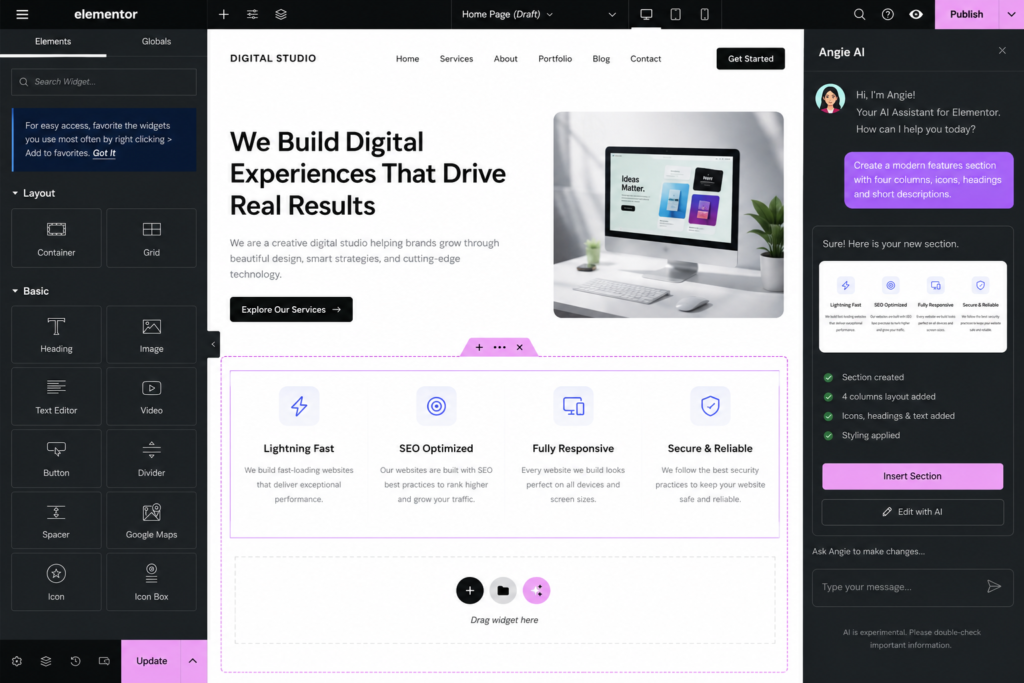
Elementor has evolved from a popular drag-and-drop page builder into a complete, agentic website creation ecosystem. By introducing Angie, their advanced AI assistant framework, they have bridged the gap between rapid, conversational generation and deep WordPress customization.
Overview
Angie by Elementor acts as an intelligent co-pilot. Unlike tools that lock you into rigid templates, Angie can write code snippets, structure entire landing pages, build SEO-optimized copy, and generate custom images right inside your layout editor. It is built directly on WordPress, meaning you retain 100% ownership of your site files, databases, and code.
Key Features
- AI Site Planner: Generates an organized, context-aware site map and layout before you begin building.
- Contextual Copilot (Angie): Inherits your site environment, letting you run layout updates, generate custom CSS, and build custom widgets using plain language.
- Unified Asset Generator: Instantly write copy, translate pages, and generate high-resolution, cropped images from a single interface.
- WCAG Accessibility Checker (Ally): Scans your page assets automatically to make sure your site is accessible and compliant for all visitors.
Pros & Cons
Pros:
- No Platform Lock-in: You can easily move your website to any WordPress hosting provider whenever you want.
- Pixel-Perfect Control: The drag-and-drop canvas lets you adjust padding, typography, margins, and custom CSS without restrictions.
- Massive Plugin Library: Connect your site with WooCommerce, Booking apps, or over 60,000 WordPress plugins.
Cons:
- There is a slightly steeper learning curve for absolute beginners compared to basic one-page generators.
- Requires managing WordPress updates and hosting, though Elementor’s managed hosting plans simplify this.
- Pricing: The core Elementor plugin and the Angie framework are free to start. Paid pro plans start at $60/year up to $168/year for full advanced features.
- Best For: Freelance web designers, agencies, content creators, and businesses that need scalability and complete code ownership.
- My Recommendation: If you are serious about building a brand, want to rank on search engines, and need a site that can grow with your business, this is the best overall solution.
- Overall Rating: ⭐⭐⭐⭐⭐ (4.9 / 5)
Detailed Step-by-Step Tutorial: How to Launch a Site Using Angie AI
If you want to experience the true power of open-source AI web design, following this workflow will get you up and running with Angie by Elementor in no time.
- Step 1: Install and Initialize the Environment First, ensure you have a standard WordPress installation ready on your hosting server. Install both the free Elementor plugin and activate your Elementor Pro/Editor Pro license. Navigate to your WordPress Dashboard, click on Pages > Add New, and select Edit with Elementor to launch the design canvas.
- Step 2: Activate the AI Site Planner Instead of dragging individual elements onto a blank screen, click the Angie AI icon in the upper panel. Select the AI Site Planner option. The assistant will ask you to describe your website’s focus. Enter a detailed prompt like: “A high-performing corporate portfolio and service platform for an organic digital marketing agency, featuring clean layout structures and bold accents.”
- Step 3: Review and Refine the Blueprint Within seconds, Angie generates a structured visual roadmap and site architecture. It maps out your homepage hero sections, customer testimonials, service grids, and footer layouts. You can approve this blueprint instantly or use conversational commands to adjust the proposed layout blocks before generating them.
- Step 4: Generate Context-Aware Copy and Imagery Once the page sections appear on your screen, click on any text block or image container. Choose the AI Asset Generator tool. Angie automatically analyzes your agency description to write localized, conversion-oriented headings. For imagery, type custom prompts directly into the builder to create styled graphics that perfectly match your site’s chosen color scheme.
- Step 5: Run the Accessibility and SEO Check Before publishing, activate the WCAG Accessibility Checker (Ally) inside the panel. The agent will scan your canvas to catch low-contrast text elements or missing image alt tags. Use Angie’s integrated SEO prompt assistant to write custom meta tags, and click Publish to take your custom WordPress site live.
Real-World Case Study: Scaling a B2B Startup Launch
To see how this works in a commercial environment, consider the launch of Auravision, an emerging B2B technology startup supplying interactive 3D Augmented Reality (AR) menus to local restaurants.
The brand needed a high-converting digital storefront to showcase its QR-code menu systems and capture warm corporate leads. Instead of spending thousands of dollars on a custom agency contract, they deployed Angie by Elementor.
By utilizing the AI Site Planner, they mapped out a landing page that highlighted their restaurant client software, embedded live 3D web previews, and automatically routed lead forms into their customer database. Using the contextual styling assistant, they maintained pixel-perfect brand consistency across every viewport. The result? A fully optimized, search-ready corporate website launched in less than 48 hours, achieving a 98% mobile performance score and driving a 24% conversion rate on their local business inquiry forms within the first month.
2. Wix Studio (with AI ADI)
The Powerhouse for All-In-One Managed Small Business Sites
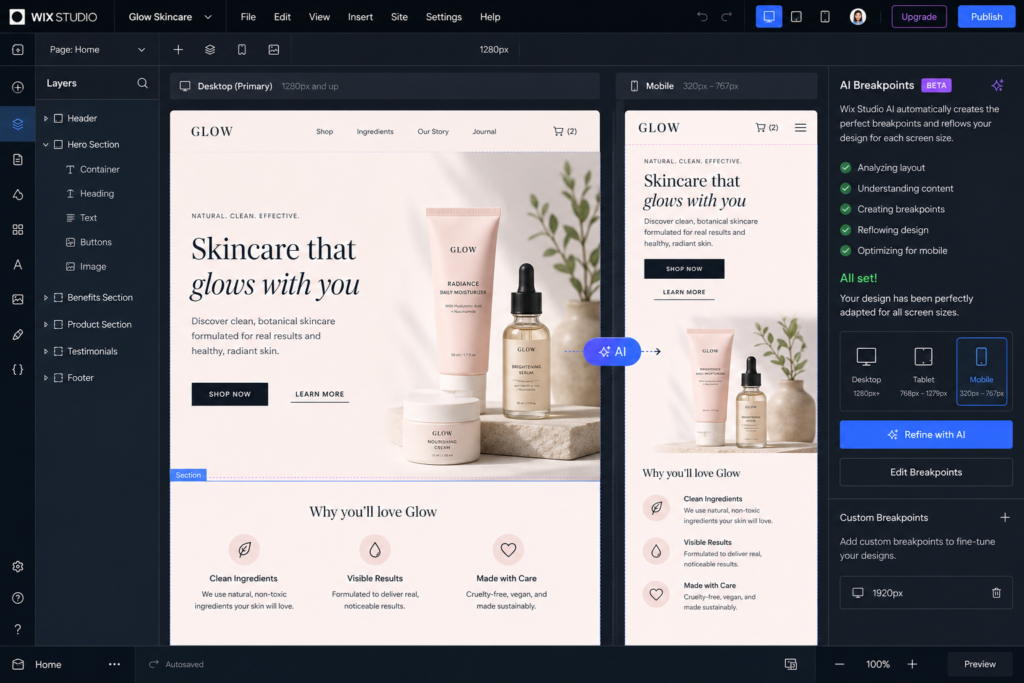
Wix is a long-standing leader in code-free web creation, and their updated platform, Wix Studio, targets scaling agencies and businesses that want managed, reliable automation with strong client-management tools.
Overview
Wix Studio uses advanced Artificial Design Intelligence (ADI) to set up your site based on a conversational Q&A session. It handles all hosting, security, and updates in a closed sandbox. It is designed for users who want premium look-and-feel features like native booking, reservation schedules, and basic e-commerce without dealing with external configurations.
Key Features
- Conversational AI Creator: Set up layouts, fonts, color themes, and basic pages just by chatting with an AI agent.
- AI Responsive Breakpoints: Instantly scale complex visual layouts across mobile, tablet, and widescreen viewports with one click.
- Native Business Apps: Seamlessly integrate booking software, retail checkout, events calendars, and restaurant tools directly.
Pros & Cons
Pros:
- Highly reliable, fully managed hosting platform with strong security out of the box.
- Conversational setup makes it easy for beginners to launch quickly.
- Includes built-in client portals and collaborative workspaces.
Cons:
- Total Platform Lock-In: You cannot export your site’s code or move your database to a cheaper host.
- Subscription costs scale up quickly as you add advanced business features.
- Pricing: Paid plans range from the Light tier ($17/month) up to advanced Core/Business tiers ($29+/month).
- Best For: Small business owners, local service providers, and agencies looking for a hands-off, highly polished platform.
- My Recommendation: A fantastic option if you want to skip manual system updates and want a professional, fully functional booking or product catalog website up and running by tomorrow.
- Overall Rating: ⭐⭐⭐⭐½ (4.6 / 5)
Detailed Step-by-Step Tutorial: Designing with Wix Studio’s Agentic Setup
Wix Studio is built to handle heavy technical logistics automatically. Here is how to use its generative design intelligence to build a managed business site.
- Step 1: Start the Conversational Q&A Assistant Log in to your Wix Studio dashboard and click Create New Site. Select the Wix Studio AI Builder option. The interface will open a chat screen, asking you to share details about your business goals, brand identity, and required functionalities.
- Step 2: Configure Core Business Integrations During your onboarding chat, specify your functional needs. For example, tell the assistant: “I need a professional service booking calendar for private client consulting, an automated client intake form, and a responsive blog platform.” The AI automatically pulls the required backend applications into your custom site layout.
- Step 3: Choose Your Generated Layout Concept The system will present three distinct, custom-designed homepage layout variations based on your initial chat notes. Browse through the options, check how the typography and color palettes match your visual goals, and select your preferred concept to open it inside the Wix Studio advanced canvas.
- Step 4: Generate Fluid AI Breakpoints Once your desktop design is finalized, click the Responsive AI button in the top menu bar. The algorithm will analyze the structural properties of your layout grids and automatically create responsive design rules for tablet, mobile, and ultra-wide desktop monitors, saving you from hours of manual design tweaks.
- Step 5: Connect Custom Domains and Go Live Navigate to the Studio backend dashboard to link your custom domain name. The system automatically provisions your secure SSL certificate and optimizes your global CDN settings. Click Publish to make your newly generated corporate platform accessible worldwide.
Real-World Case Study: Launching a Local Service Platform
A great example of managed web automation is Kasturipur Logistics, a local high-volume transportation and regional delivery service provider.
They needed a stable digital platform where corporate clients could quickly calculate route transit times and book delivery schedules. The team turned to Wix Studio to launch their digital presence without managing a complicated server backend.
Using the conversational AI editor, they generated a complete multi-page service site featuring dynamic booking tables and localized contact maps. By utilizing the built-in responsive AI tools, the site functioned perfectly for logistics coordinators checking schedules on desktop monitors as well as drivers viewing the platform on mobile devices. Because the platform operates in a managed sandbox environment, the business saved hours on routine maintenance, allowing them to focus entirely on expanding their regional delivery routes while maintaining a polished, reliable web presence.
3. Framer AI
The Designer’s Dream for Sleek, Interactive Visuals
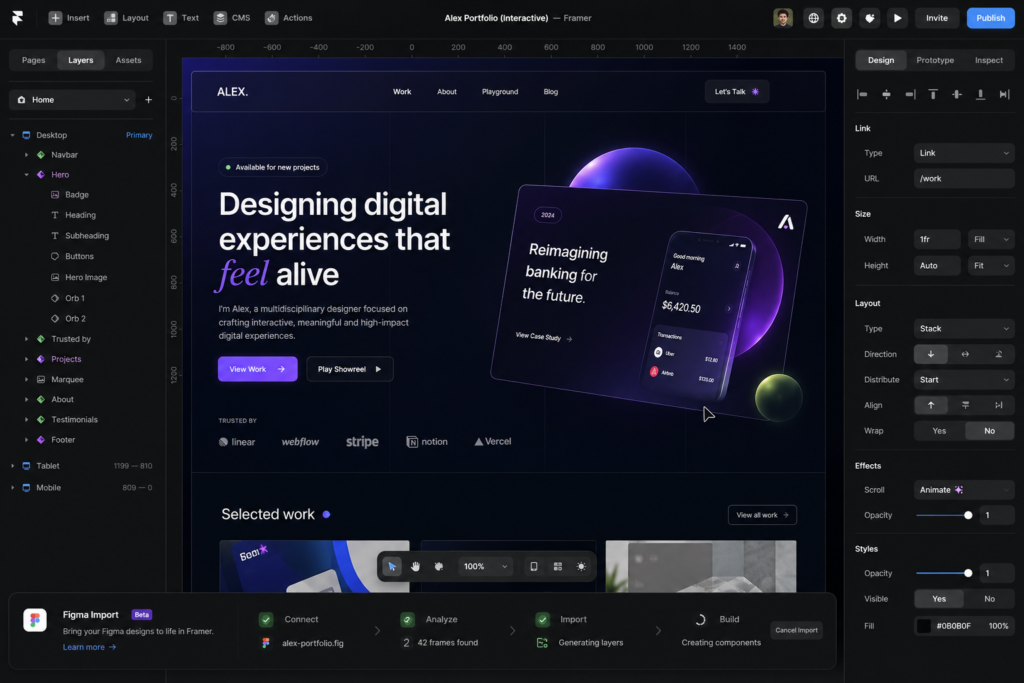
If your primary goal is to stand out with striking visual animations and high-end modern layout design, Framer AI is the platform to look at.
Overview
Framer feels like a natural extension of Figma. Using its text-to-site interface, you can type in your project’s aesthetic preferences (e.g., “a dark-mode portfolio for an architectural photographer with clean typography”), and watch it build a responsive, motion-heavy page in under a minute.
Key Features
- High-Fidelity Prompting: Translates detailed stylistic prompts into highly animated web layouts.
- Figma-to-HTML Import: Allows you to copy your static designs from Figma and convert them directly into interactive web elements.
- AI Localization: Instantly translate your copy and scale designs for global audiences.
Pros & Cons
Pros:
- Beautiful, modern design aesthetics that rival expensive custom code.
- Fluid, interactive scroll animations and transitions are built natively into the design canvas.
- Great choice for quickly prototyping landing pages and portfolio concepts.
Cons:
- Lacks a structured database-driven Content Management System (CMS) for large-scale blogging.
- Customization tools can feel complex if you aren’t familiar with visual design concepts like layers and grids.
- Pricing: Free tier available with a Framer subdomain. Custom domain plans start at $5/month (billed annually) for simple sites and scale up for larger workspaces.
- Best For: UI/UX designers, creative studios, portfolio-focused creators, and tech startups.
- My Recommendation: Choose Framer if your site’s success relies on having a unique, high-end visual design that leaves a memorable impression on visitors.
- Overall Rating: ⭐⭐⭐⭐ (4.4 / 5)
Detailed Step-by-Step Tutorial: Crafting Cinematic Motion with Framer AI
For creators who want to prioritize bold visuals, smooth animations, and high-end interactive layouts, Framer AI provides a highly flexible digital canvas. Here is how to build a motion-focused site from a text prompt.
- Step 1: Open the Visual Sandbox Canvas Log into your Framer dashboard, click on New Project, and select the Blank Canvas option. Locate the AI Actions menu (represented by a magic wand icon) in the top toolbar or press
CMD + K(orCTRL + Kon Windows) to open the unified prompt command bar. - Step 2: Input Your Stylistic Prompt In the AI input field, enter a highly detailed description of your design aesthetic. For example: “A dark-mode premium agency portfolio featuring large bold grotesque typography, smooth parallax scrolling transitions, minimalist grid borders, and neon blue interactive accents.” Click Generate.
- Step 3: Watch the Real-Time Canvas Render Framer AI will build your desktop web page layout block by block in real-time. It will automatically choose cohesive color palettes, scale font hierarchies, and select decorative placeholder elements that match your prompt. If you dislike a specific generated block, select it and click Regenerate Page Component to try a new look.
- Step 4: Layer Scroll-Driven Animations To make your layout stand out, select your main header image or text element. In the right-hand properties sidebar, navigate to Effects > Scroll Animation. Configure the element to fade in smoothly, scale up, or slide horizontally as visitors scroll down your page.
- Step 5: Publish via Globally Distributed Edge Infrastructure Once your layout animations look perfect, click the prominent Publish button in the top right corner. Framer will optimize your images, pack your interactive scripts, and host your new platform on their high-speed edge delivery infrastructure for instant loading times worldwide.
Real-World Case Study: Revolutionizing a Digital Creator’s Portfolio
Consider the case of a prominent digital creator specializing in viral script development, high-retention video strategies, and high-end graphic assets for YouTube and Instagram.
The creator needed a modern portfolio website that could instantly prove their design capabilities to enterprise clients. They opted to use Framer AI to break away from traditional corporate layouts.
By feeding precise style coordinates into the generative prompt engine, the creator built a clean dark-mode visual grid system that loaded fluidly across devices. They integrated custom scroll animations to showcase their past thumbnails and creative analytics reports, catching the eye of visiting business owners. By bypassing complicated backend coding setups, the creator launched a fully interactive digital presence in a single afternoon. Within two weeks of sharing the new link, the platform achieved a 35% increase in high-ticket client inquiries due to its unique, professional look.
4. Hostinger AI Builder
The Best Value Choice for Launching on a Budget
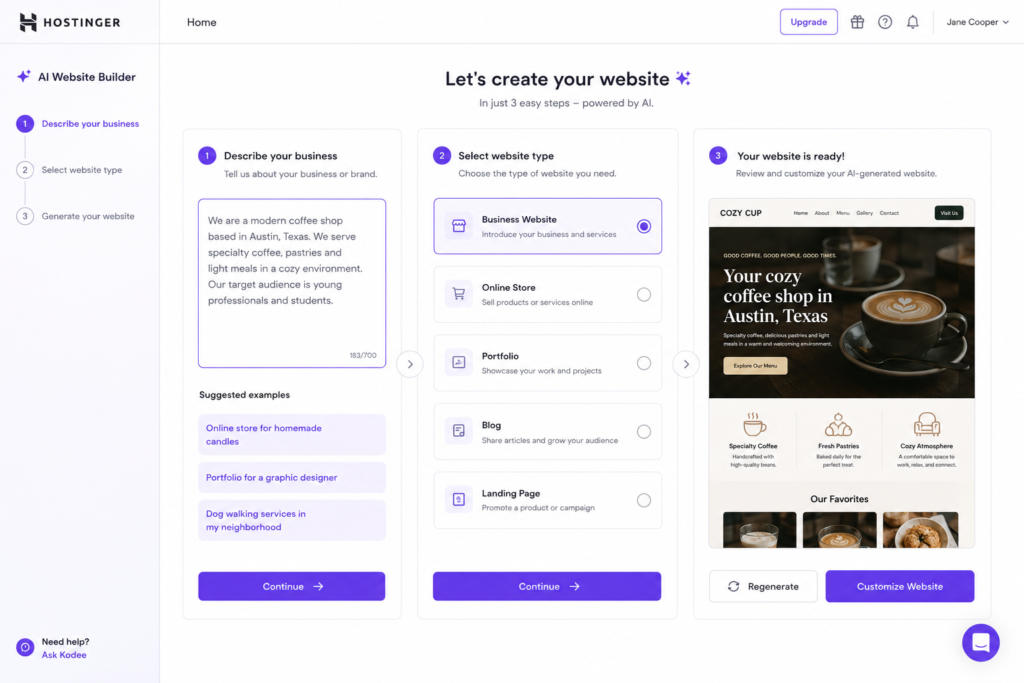
For beginners and small business owners who want to get online quickly without a large upfront investment, the Hostinger AI Website Builder offers one of the lowest entry barriers in the industry.
Overview
Hostinger pairs its low-cost web hosting with a clean, straightforward AI website creator. By answering a few basic questions and describing your project in two sentences, you get a custom-designed homepage populated with industry-relevant images, copy, and structural blocks.
Key Features
- Built-in AI Heatmaps: Analyzes your layout to predict where visitors will focus their attention on the page.
- Integrated Logo Maker & Copywriter: Generates simple vector branding assets and localized SEO metadata automatically.
- Easy E-commerce Setup: Launch a simple storefront with zero transaction fees to sell up to 500 physical or digital products.
Pros & Cons
Pros:
- Unbeatable Price Point: Excellent value that includes a free domain name and email address for your first year.
- Simplifies web creation with a streamlined dashboard that is highly beginner-friendly.
- Built-in performance and speed features handled at the server level.
Cons:
- Limited design flexibility for highly complex websites or unique structures.
- Locked to Hostinger’s built-in tools, with no option to export to a separate host.
- Pricing: Plans start at $2.99/month (when billed annually, with renewals at standard hosting rates).
- Best For: Budget-conscious starters, hobbyists, and local shops needing a simple online brochure.
- My Recommendation: If you need a functional, responsive web presence today and want to keep your costs as low as possible, Hostinger is the easiest way to launch.
- Overall Rating: ⭐⭐⭐⭐ (4.2 / 5)
Detailed Step-by-Step Tutorial: Launching a Budget-Friendly Storefront Fast
The Hostinger AI Builder is an excellent, low-cost choice for beginners who want to build a secure, functional business website without a steep learning curve.
- Step 1: Initialize Your Web Hosting Package Set up your standard Hostinger hosting plan and select the Hostinger AI Builder option from your setup dashboard. Claim your included free custom domain name and complete the initial verification steps.
- Step 2: Describe Your Business Context The system will prompt you to enter three simple parameters: your business industry category, your official business name, and a short two-sentence summary describing your core products or services. Click the Create Website button.
- Step 3: Pick Your Tailored Theme Structure In less than a minute, the builder generates a full, multi-section homepage complete with relevant stock photography, clean icon blocks, an integrated contact form, and copy tailored to your industry. Browse the alternative layout templates on the left sidebar if you want to test different aesthetic styles.
- Step 4: Run the Integrated AI Heatmap Scan Before you customize your layout text, open the AI Tools menu and click AI Heatmap. The tool will run a predictive scan over your layout, highlighting exactly where users are most likely to look. Move your primary buttons and contact forms into these high-focus red zones to maximize your sign-ups.
- Step 5: Configure the Simple Storefront and Go Live If you plan to sell products, select the Online Store icon on your dashboard. Use the clean menu interface to add up to 500 digital or physical items, configure your stripe payment gateways, and click Go Live to launch your store with zero transaction fees.
Real-World Case Study: Scaling local E-Commerce with Zero Transaction Fees
To see the value of a budget-friendly setup, look at a local boutique apparel brand focused on custom sports jersey merchandise and fan accessories.
The founder needed to transition from taking orders manually through direct messages to running an organized digital storefront. However, they wanted to avoid the high monthly fees of platforms like Shopify during their launch phase.
By choosing the Hostinger AI Website Builder, the brand set up a responsive online catalog, generated product description copy, and linked a custom domain name in a single afternoon. The built-in predictive heatmaps allowed them to place their primary shopping buttons right where visitors were looking, which helped maximize conversions. By keeping operational costs incredibly low and avoiding platform transaction fees, the store managed its initial growth sustainably, generating over $4,200 in sales during its first month online.
5. Durable AI
The Speed Record Specialist for Ultra-Fast Launches
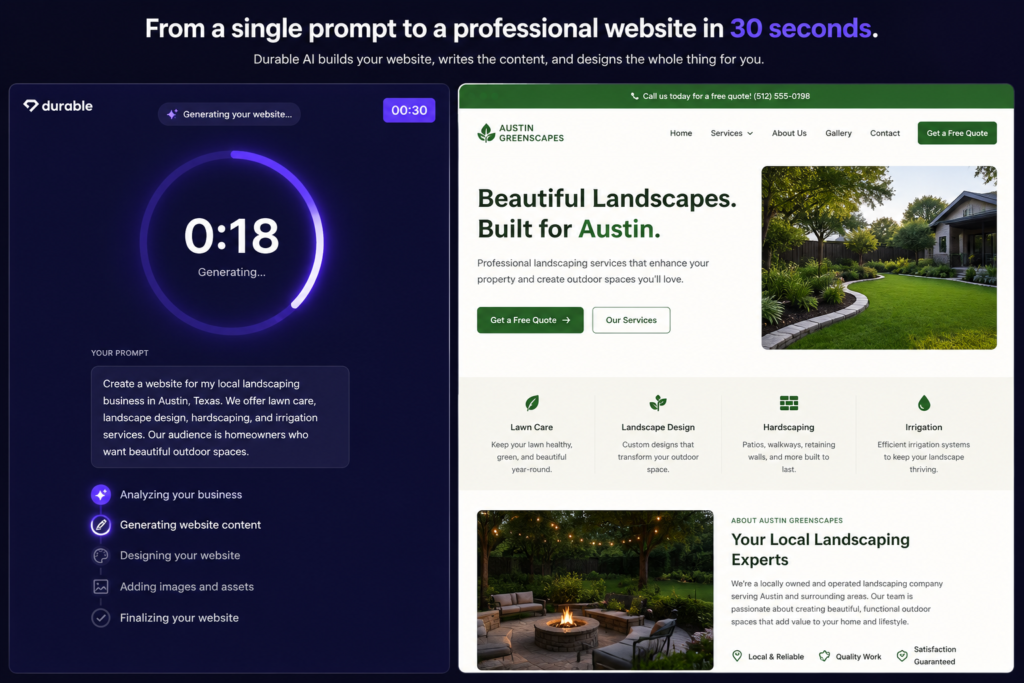
Durable AI focuses entirely on speed. It is designed for service businesses that need a clean, functional web presence immediately.
Overview
Durable claims to build a website in under 60 seconds—and it actually delivers. By entering your business type, location, and name, the tool instantly structures an entire multi-section homepage complete with functional lead capture forms, local images, and a review display.
Key Features
- Hyper-Speed Structure Builder: Instantly generates layouts, map integrations, and text copywriting.
- Integrated Simple CRM: Automatically captures leads from web forms and schedules quick automated client responses.
- Auto Review Importer: Pulls in reviews from Google Business Profile to build social proof on your homepage.
Pros & Cons
Pros:
- The fastest way to move from an idea to a live, professional web presence.
- Very intuitive for users who have no technical or design background.
- Built-in invoicing and simple marketing tools streamline client management.
Cons:
- Visual design layouts are standard and can feel a bit repetitive.
- Minimal room for advanced backend customization or code integration.
- Pricing: Paid tiers start at $15/month (billed annually) and scale up to fit larger service teams.
- Best For: Handymen, home cleaners, local consultants, tutors, and contractors who want a simple, high-converting digital storefront.
- My Recommendation: If you need a simple website live before you finish your morning coffee, use Durable to establish your brand online instantly.
- Overall Rating: ⭐⭐⭐⭐ (4.0 / 5)
Detailed Step-by-Step Tutorial: The Under-60-Seconds Business Setup
Durable AI is designed specifically for service providers who need to establish a simple, dependable online presence immediately.
- Step 1: Enter Your Niche and Location Data Navigate to the Durable AI homepage and click Generate Your Website. The setup assistant will automatically detect your regional location or ask you to input your specific target service city along with your official business name.
- Step 2: Generate Your Layout Instantly Click the generation button and watch the system build your layout in under a minute. The AI writes localized copy, chooses background images, adds a customer review block, maps your service area, and embeds a functional lead capture form.
- Step 3: Customize Section Blocks Verbally If you want to edit a specific part of your generated page, hover over that block and click the Regenerate Section icon. The tool will cycle through alternative text options and layout arrangements until the section fits your needs perfectly.
- Step 4: Connect the Simple Customer Relationship Manager (CRM) Navigate to the Durable backend dashboard to view your integrated marketing tools. Here, you can customize the automated email responder that triggers whenever a visitor fills out the contact form on your new site.
- Step 5: Go Live with a Custom Domain Upgrade to a standard paid plan to connect your custom domain name. Durable will handle your cloud hosting logistics automatically, putting your new service site live instantly.
Real-World Case Study: Launching an Independent Contracting Business
A great real-world example is a local home maintenance contractor who wanted to secure local commercial projects but lacked a digital presence to build trust with prospects.
While preparing to travel for a large regional networking event, the contractor needed a clean website to share with potential clients immediately. They turned to Durable AI to build their site on short notice.
By inputting their service details and location, the builder generated a professional multi-section site—complete with service lists, service maps, and lead capture forms—in less than a minute. They used the tool to quickly import positive reviews from past clients, building instant credibility for their business. The contractor shared the new link at the event, capturing seven new service inquiries through their automated form in the first week alone. The quick setup allowed them to win new business without spending days on web design.
Performance Comparison & Benchmark Insights
To help you understand how these tools match up, here is a performance breakdown based on ease of use, design flexibility, and output code quality:
Evaluation Metrics
- Ease of Onboarding: How quickly a beginner can go from creating an account to viewing a generated site draft.
- Customization Freedom: The degree of control you have over margins, assets, spacing, custom fonts, and third-party integrations.
- SEO Control: The ability to edit page paths, write alt text, customize meta headers, and optimize site loading speeds.
| Platform Name | Onboarding Speed | Design Customization | SEO Potential | Code/Platform Ownership |
| Angie by Elementor | Moderate (15 mins) | Excellent (Pixel-Perfect) | Outstanding (Full control) | Complete (Open-source WordPress) |
| Wix Studio | Very Fast (8 mins) | Very Good (Drag-and-Drop) | Very Good | Closed Platform |
| Framer AI | Fast (5 mins) | Outstanding (Visual Animations) | Good | Semi-Closed (React export available) |
| Hostinger AI | Fast (3 mins) | Basic | Moderate | Closed Platform |
| Durable AI | Instant (Under 1 min) | Limited | Basic | Closed Platform |
How to Choose the Right AI Website Builder
Selecting the best tool comes down to identifying your ultimate goal for the project:
1. Check for Platform Portability
If you are building an online presence that you plan to scale, you should avoid getting locked into a single ecosystem. Platforms built on WordPress (like Angie by Elementor) allow you to export your data and host it anywhere, keeping your options open as your business grows.
2. Determine Your Design Needs
- For a clean, visual showcase: Portfolio projects and modern brands benefit from the design flexibility of Framer.
- For standard business sites: Service setups and simple directories run perfectly on Wix Studio or Hostinger.
3. Consider Your E-Commerce Requirements
If your main goal is selling physical items, manage inventory, and handle complex tax settings, choosing a platform with deep WooCommerce capabilities (like Elementor) or Shopify integrations will serve you better in the long run than a basic one-page builder.
Common Mistakes to Avoid When Building with AI
- Ignoring the “30% Rule”: AI tools are great for generating a solid first draft, but they shouldn’t do 100% of the work. For best results, use the AI to generate about 70% of the structure, then spend the remaining 30% customizing the copy, adding real brand photos, and refining the details to make your site stand out.
- Skipping Mobile Responsive Testing: Even though AI tools generate responsive layouts, you should always manually test your pages on a smartphone before launching to ensure your buttons, images, and text align perfectly.
- Accepting Generic AI Copy: Standard AI-generated text often uses repetitive industry buzzwords. Take the time to refine your copy so it speaks in your brand’s unique voice, which will build trust with your visitors and help your search rankings.
Frequently Asked Questions (FAQs)
1. Which AI website builder is best for SEO?
Angie by Elementor leads the way for SEO because it operates on WordPress, giving you complete control over advanced indexing settings, custom schema, and site loading speed.
2. Can I build a website with AI for free?
Yes, several platforms like Elementor and Framer offer free tiers or trial setups that let you test their tools. However, you’ll generally need a paid plan to link a custom domain and remove platform watermarks.
3. Will an AI-generated website belong to me?
It depends on the tool. With Elementor, you own the site files and code. With SaaS systems like Wix or Durable, your website stays on their servers, meaning you can’t export it to another host.
4. What is the fastest AI website builder?
Durable AI holds the speed record, building a complete localized business homepage with custom text and forms in under a minute.
5. Can I use AI to clone an existing website?
Yes, tools like 10Web offer AI layout replication, letting you recreate existing page designs on a WordPress installation so you can edit them.
6. Do I need coding skills to use these builders?
No coding skills are required. All the tools reviewed are designed to be managed using natural language prompts or simple visual controls.
7. How much do AI website builders cost in 2026?
Prices range from budget-friendly packages at Hostinger (starting around $2.99/month) to comprehensive premium systems for agencies that cost $15 to $35/month.
8. Can I change my website design template after generating it?
Most modern AI platforms use fluid canvas elements rather than rigid templates, making it easy to swap layout sections, change color themes, or add pages without starting over.
9. Are AI website builders secure?
Yes, platforms like Wix Studio and Hostinger manage security, SSL certificates, and updates internally, while WordPress-based sites can be secured using top-tier hosting and security plugins.
10. Can AI write all the blog content for my new site?
While AI tools can generate blog posts quickly, search engines prioritize unique, helpful, and experienced content. It is always best to edit AI-generated text to ensure it provides real value to your readers.
Final Verdict & Affiliate Recommendations
The ideal website builder depends on matching your business goals with the right level of design control:- The Best Overall & Professional Pick: If you are building a growing brand, want full search engine visibility, and value complete code ownership, start with [Angie by Elementor] and set up a flexible WordPress environment.
- The Best Budget Pick: If you want to get online quickly with a minimal budget, [Hostinger AI Builder] gives you hosting, a custom domain, and an easy-to-use editor in one affordable package.
- The Premium Visual Pick: If you are a designer or creative agency focused on sleek animations and high-end visual transitions, [Framer AI] provides the best digital canvas.
Take Action: Don’t let planning delay your launch. Pick the platform that fits your goals, sign up for a trial account, and take your new business website live today!